How to Build an Automated Zero-Based Budget in Google Sheets (Free Template Included)

Why Traditional Budgeting Apps Fail (and Why Spreadsheets Win)
Are you paying a monthly subscription fee just to see where your money went?
You’re not alone. I spent months testing popular budgeting apps, only to realize I was paying recurring fees for rigid, closed-off systems. I wanted complete control over my financial data without typing in every single coffee receipt by hand.
So, I ditched subscription fatigue and built a hybrid system: a custom Google Sheets Zero-Based Budget powered by an AI data-entry assistant.
Here is the exact tech stack I use:
- The Core: A custom Google Sheets Zero-Based Budgeting spreadsheet.
- The Auto-Sync: PocketGuard (a one-time purchase app) to pull raw transaction data across all accounts.
- The Engine: An AI prompt that automatically formats and logs transactions into my spreadsheet without double-counting transfers or credit card payments.
I went from feeling overwhelmed by housing payments, utilities, and credit card bills to having full clarity over my financial health and total peace of mind.
What Is Zero-Based Budgeting?
A zero-based budget is simple: Your Income – Expenses – Savings = $0.
Instead of letting leftover money sit idly in your checking account, you assign a specific purpose to every single dollar you earn. The goal isn't to restrict your lifestyle—it's to eliminate financial waste, build intentionality, and keep yourself accountable.
The Core Principle: Every Dollar Has a Job
Successful goal-setters write down their objectives. Zero-based budgeting applies that exact principle to your money.
When every dollar has a predefined assignment, there’s no guessing game. You immediately see when you’re drifting off track—and exactly how it impacts your long-term wealth goals.
My Ideal Paycheck Allocation Baseline
While everyone’s situation is different, here is the baseline breakdown I use to balance current needs with future wealth:
- 50% Essentials: Housing/Mortgage, utilities, groceries, and debt obligations.
- 25% Investing: High-growth wealth building (retirement & brokerage).
- 15% Savings: Sinking funds, emergency reserves, and short-term goals.
- 10% Lifestyle & Fun: Travel, entertainment, and guilt-free spending.
How to Automate Your Spreadsheet with AI
Instead of manually typing in transactions, I export my transaction log from PocketGuard and let AI handle the heavy lifting.
🤖 Copy/Paste AI Agent Instructions for Data Logging:
Step-by-Step: Setting Up Your Free Finance Tracker
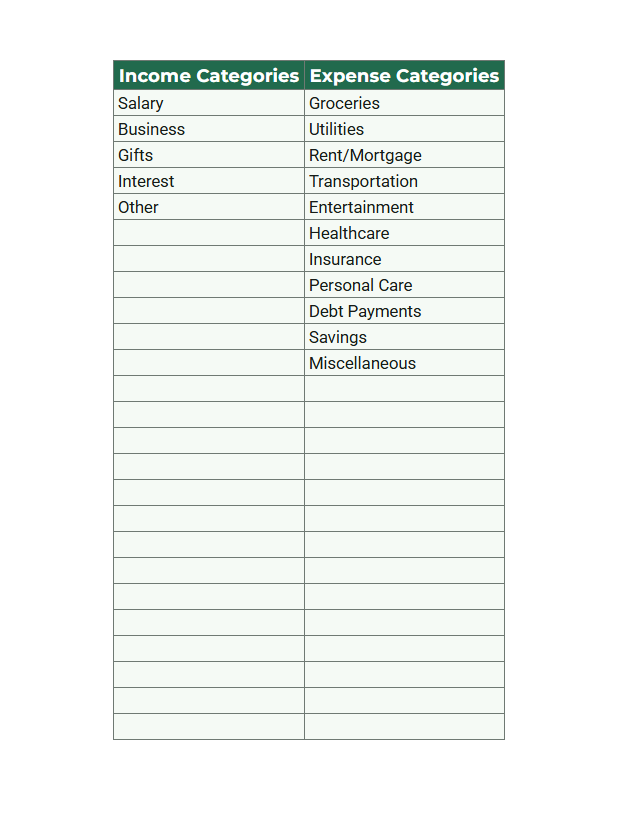
- Customize Your Categories: Add custom income and expense categories in the Setup tab. Ensure these categories align with how you set up PocketGuard for future automation.
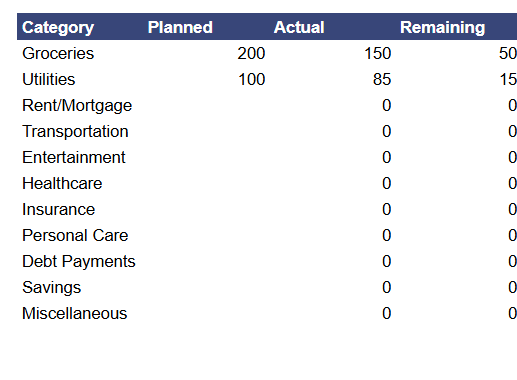
- Set Monthly Targets: Define your expected spending limits in the Budget tab. Follow the 50/25/15/10 allocation mentioned above.

- Map Out Debt: Enter loans and balances in the Debt Payoff tab to track paydown schedules.

- Fund Sinking Goals: Set target dates for savings in the Sinking Funds tab.
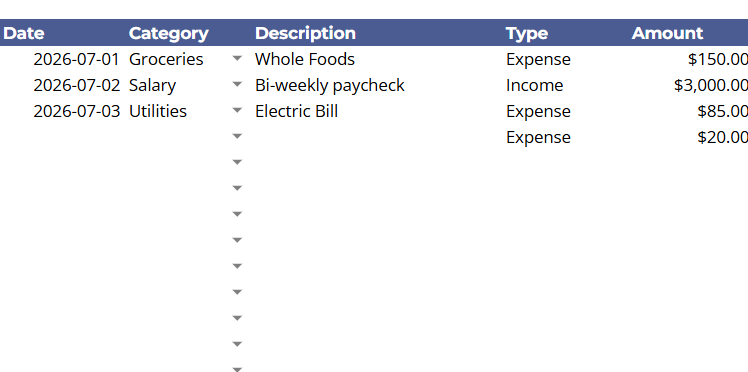
- Log & Review: Upload your transactions (or let your AI prompt auto-populate them)!
Beyond monthly tracking, the template includes a Dashboard for visual analytics, a Mortgage Amortization Schedule, a Buy vs. Rent Calculator, an Investment Ticker Tracker, and a Retirement Projection Calculator.
Download Your Free Google Sheets Budget Template
Ready to take full control of your cash flow without another monthly subscription?
👉 [Click Here to Access the Free Google Sheets Budget Template]
Have feedback or custom formula ideas? Drop a comment below or reach out directly—I’d love to help you customize it to match your personal goals!



Comments ()